Technology6 min read
Why Is My Phone Battery Draining So Fast? The Real Causes and the Fixes That Work
A phone that once lasted all day now needs a charger by lunchtime. Sometimes the battery is wearing out; often an app, a setting or even a weak signal is to blame. Here is how to tell the difference.
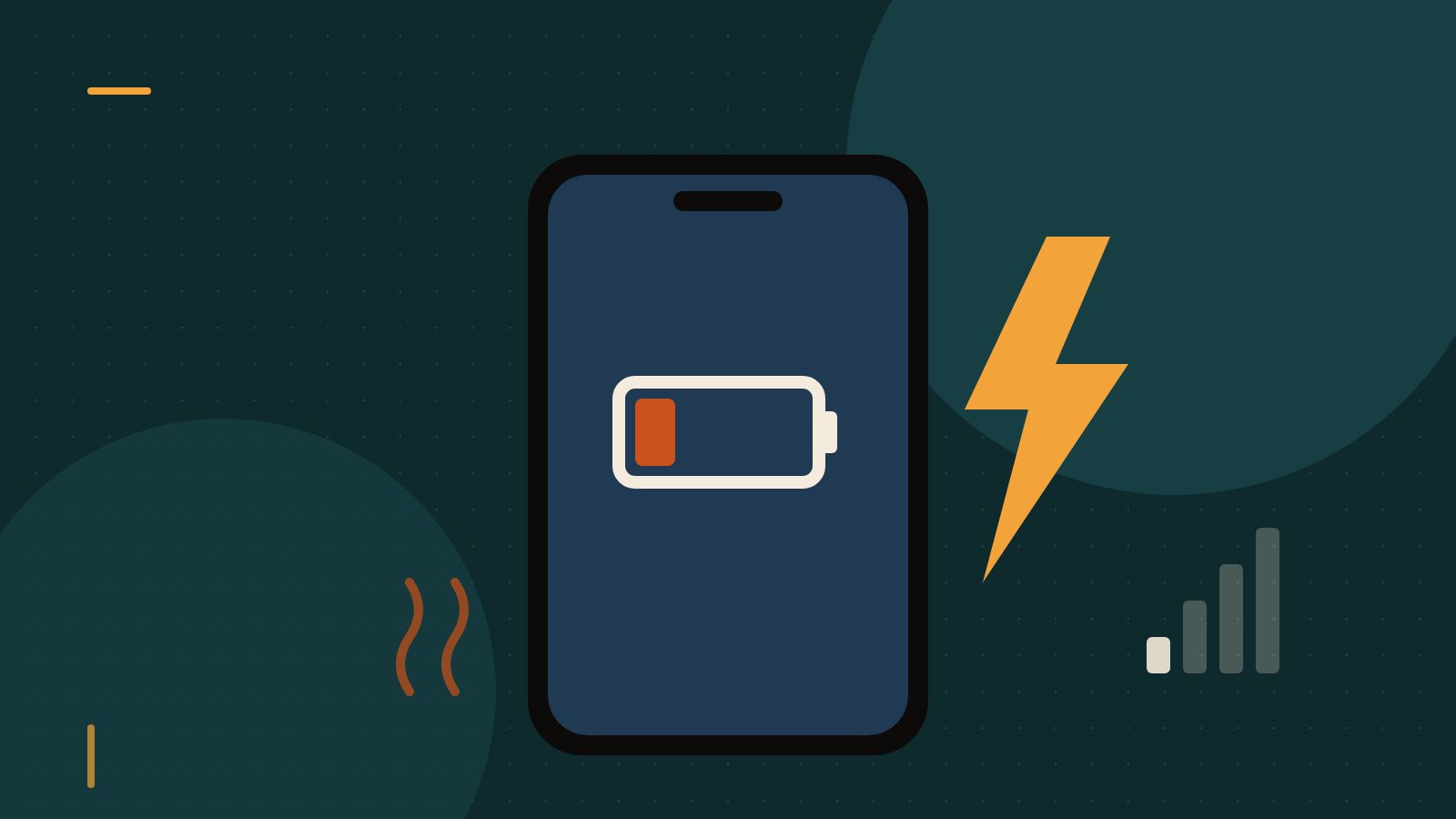
It is one of the most common tech complaints there is. Your phone used to get through a full day without trouble. Now it is at 40 percent by early afternoon, it gets warm in your pocket and you have started carrying a charging cable everywhere.
Battery drain is frustrating partly because it can have so many causes. The good news is that most of them can be identified in a few minutes, and many can be fixed without buying anything.
The quick answer
The most common reasons a phone battery drains quickly are:
- a bright screen that stays on for long periods;
- an app using lots of power in the background, often after an update;
- weak mobile signal or poor Wi-Fi, which makes the phone work harder;
- location services, Bluetooth and constant syncing;
- heat;
- an older battery that has lost part of its capacity.
Start by checking which apps use the most battery and what your battery's health is. That usually points straight to the problem.
Step 1: Find out what is using the battery
Both iPhone and Android phones show a breakdown of battery use by app.
- iPhone: open Settings, then Battery. You will see a graph and a list of apps with the share of battery each used over the last 24 hours or 10 days, and whether that use was on screen or in the background.
- Android: open Settings and look for Battery, sometimes inside a "Battery and device care" or similar menu. Tap the usage details to see which apps have used the most power. Menu names vary between manufacturers.
Look for anything surprising: an app you barely opened that used a large share, or a lot of background activity from social media, navigation, streaming or messaging apps. If one app stands out, update it, restrict its background activity, or uninstall and reinstall it. App bugs that drain batteries are often fixed in later updates.
Step 2: The screen
On most phones, the display is one of the biggest consumers of power. Larger, brighter screens with high refresh rates look wonderful and use more energy.
- Turn on automatic brightness, or lower the brightness manually.
- Set the screen to lock after 30 seconds or a minute rather than several minutes.
- Use dark mode if your phone has an OLED screen; dark pixels on OLED displays use less power. Most recent high-end phones use OLED.
- Turn off "always-on display" features if you do not need them.
Step 3: Background activity
Many apps keep working when you are not looking at them: refreshing feeds, syncing photos, checking your location, downloading updates and sending notifications.
- Background refresh: on iPhone, Settings, General, Background App Refresh lets you turn it off for individual apps. Android offers similar controls per app in the battery or app settings, often called "background usage" or "restricted".
- Location: check which apps can use your location "always". Very few apps need that. Change most to "while using the app" or "never".
- Notifications: every notification wakes the screen and the processor. Turn off notifications you do not need.
- Photo and cloud sync: uploading large photo and video libraries uses a lot of power. It is normal for battery use to be high for a while after setting up a new phone, while everything syncs.
Step 4: Weak signal is a hidden battery killer
When your phone has poor mobile reception, it increases its transmission power and keeps searching for a better connection. In basements, rural areas, trains and some buildings, this can drain the battery remarkably quickly.
If you are in a place with weak signal and do not need mobile data, connect to Wi-Fi if possible, or switch on airplane mode and turn Wi-Fi back on separately. If you notice that your phone always drains fast at home or in the office, poor coverage could be the reason, and Wi-Fi calling, if your provider supports it, may help.
Step 5: Heat
Lithium-ion batteries, which power almost all smartphones, dislike heat. Heat makes them drain faster in the short term and, more importantly, speeds up their long-term ageing.
Apple says iPhones work best at ambient temperatures between 0 and 35 degrees Celsius, and warns that using or charging a device in hotter conditions can permanently reduce battery capacity. Android manufacturers give similar advice. Avoid leaving your phone in a hot car, on a sunny windowsill or under a pillow while charging, and take it out of a thick case if it gets hot during charging or gaming.
Step 6: Check your battery health
Every rechargeable battery slowly loses capacity as it goes through charge cycles. A charge cycle means using 100 percent of the battery's capacity, though not necessarily in one go: using 50 percent one day and 50 percent the next adds up to one cycle.
Apple states that the batteries of iPhone 15 models and later are designed to keep 80 percent of their original capacity after 1,000 complete charge cycles under ideal conditions; for many earlier models the figure is 500 cycles. Most Android manufacturers give comparable figures for their phones.
- iPhone: Settings, Battery, Battery Health (on some models "Battery Health and Charging") shows the maximum capacity as a percentage of the original, and on recent models the cycle count.
- Android: some phones show battery health in the settings or in a diagnostics app from the manufacturer. Others do not display it directly; a service centre can test it.
If the maximum capacity has dropped to around 80 percent or below, or the phone shuts down unexpectedly at a reasonable charge level, the battery is probably worn. Replacing it is usually much cheaper than replacing the phone, and an authorised repair service will use a proper part.
Step 7: Update and restart
Software updates often include fixes for battery problems. Install the latest system updates and app updates. If drain started suddenly, a simple restart can stop a stuck process. Right after a major update, the phone may use more battery for a day or two while it re-indexes data in the background; give it a little time before drawing conclusions.
Power-saving modes
iPhone's Low Power Mode and Android's battery saver modes reduce background activity, visual effects and sometimes performance to make a charge last longer. They are useful on long days or when you are running low. You do not need to keep them on permanently if your battery is healthy.
Charging habits that help your battery last
- Avoid extreme heat, especially while charging.
- Do not worry about occasional full charges. Modern phones manage charging automatically, and you do not need to drain the battery to zero before charging. Deep discharges to 0 percent are actually harder on lithium-ion batteries than partial cycles.
- Use built-in charging protection. iPhones offer Optimised Battery Charging, and on recent models a charging limit such as 80 percent; many Android phones have similar options to limit charging or adapt it to your routine. Keeping the battery away from 100 percent for long periods reduces wear.
- Use good-quality chargers and cables from the manufacturer or reputable brands.
- For long-term storage, store a phone at roughly half charge, not full or empty.
Myths to ignore
- "Closing all apps saves battery." On modern iPhones and Android phones, constantly force-closing apps usually does not help and can even use more power, because the apps have to start from scratch next time. Close an app only if it is frozen or misbehaving.
- "You need to calibrate a new battery by draining it fully." That advice applied to older battery types. It is not necessary for lithium-ion batteries.
- "Charging overnight ruins the battery." Phones stop charging at full and many manage overnight charging intelligently. Heat is the bigger risk, so charge on a hard surface, not under a pillow.
When it might be a bigger problem
Get your phone checked by an authorised service centre if the battery is swollen, the screen is lifting, the phone gets very hot when idle, it turns off at high charge levels or the drain continues after you have tried the steps above. A swollen lithium-ion battery should not be used or charged.
The bottom line
Fast battery drain is usually a mystery with a short list of suspects. Check which apps use the most power, tame the screen and background activity, watch out for weak signal and heat, and look at your battery health. If the battery has simply worn out, a replacement can make an older phone feel new again. If not, a few minutes in the settings menu may be all it takes to get through the day again.